Your transaction overview from Worldline - orderbird MINI

Contact Us

If you still have questions or prefer to get help directly from an agent, please submit a request.
We’ll get back to you as soon as possible.

Please fill out the contact form below and we will reply as soon as possible.

  • Knowledge Base PRO
  • Contact us
English (US)
US English (US)
DE German
  • Startseite
  • Analyzing
  • Everything about cashless payment with our partner Worldline

Your transaction overview from Worldline

Written by Jens B.

Updated at June 14th, 2023

Contact Us

If you still have questions or prefer to get help directly from an agent, please submit a request.
We’ll get back to you as soon as possible.

Please fill out the contact form below and we will reply as soon as possible.

  • Starting
    First steps with your orderbird MINI Helpful information to get started Warranty information & care tips Card payment registration TSS and tax number
  • Working
    Deposit Users & Permissions Vouchers Daily work App settings
  • Analyzing
    MY orderbird - Analyze & export sales data MY orderbird - Digital receipts and receipt archive Everything about cashless payment with our partner Worldline American Express DATEV KassenSichV & GoBD Everything about cashless payment with and orderbird MINI our partner Nexi Germany
  • Cashbook
    Starting with your orderbird MINI cashbook Working with your orderbird MINI cashbook
  • Updating
  • Account and Hardware
    Info about your orderbird MINI Your MY orderbird account Multi user: you have more than one MINI device
+ More

Übersicht

Let's go Did you know? Attention!

You want a detailed overview of your Worldline transactions? You can get it online directly from Worldline, anytime!

Please note that Worldline does not send you a separate statement and no tax is charged on the transaction fees. The detailed reports you can download online are sufficient for accounting purposes.

Let's go

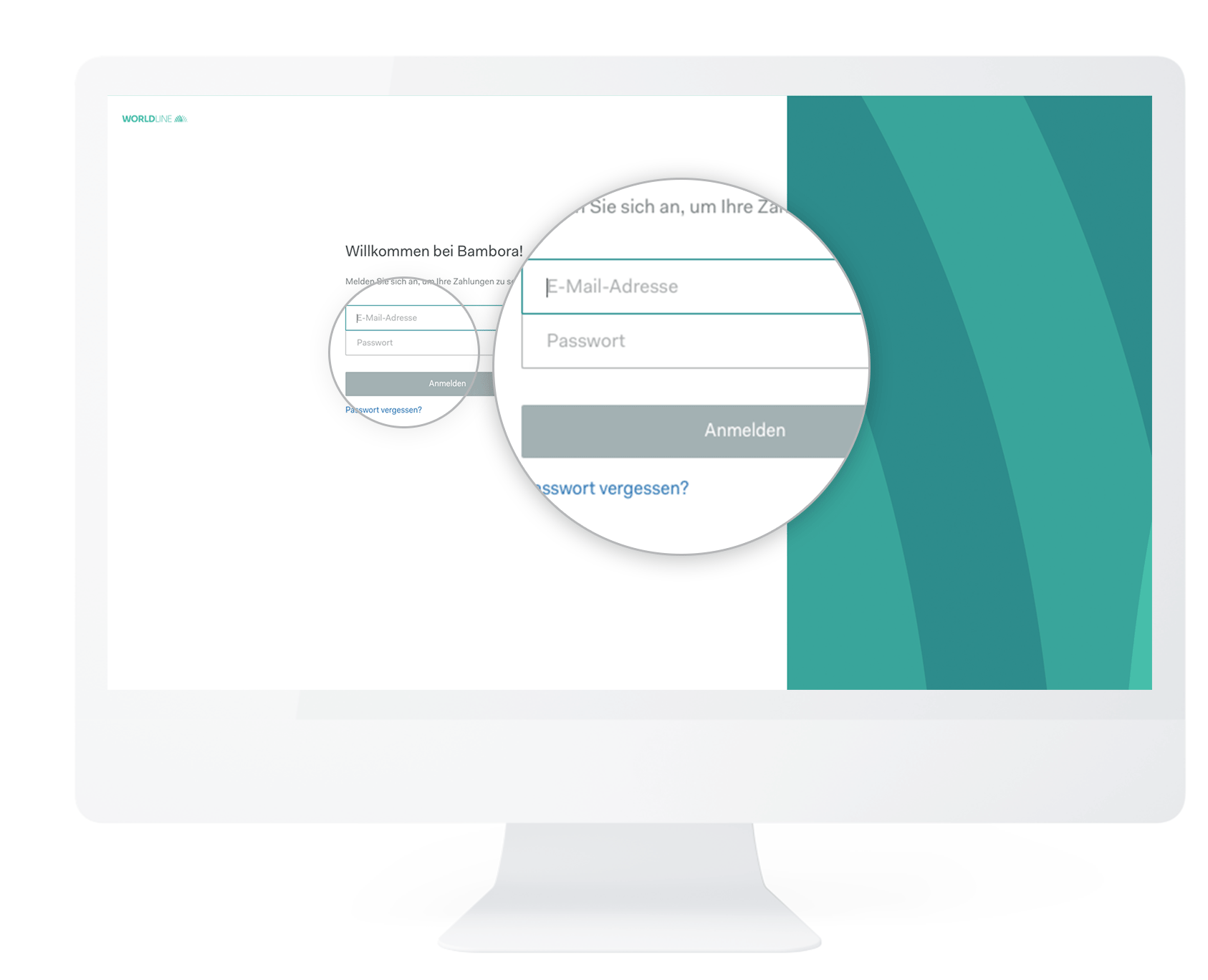
  1. Log in to reports.bambora.com with your Worldline credentials.
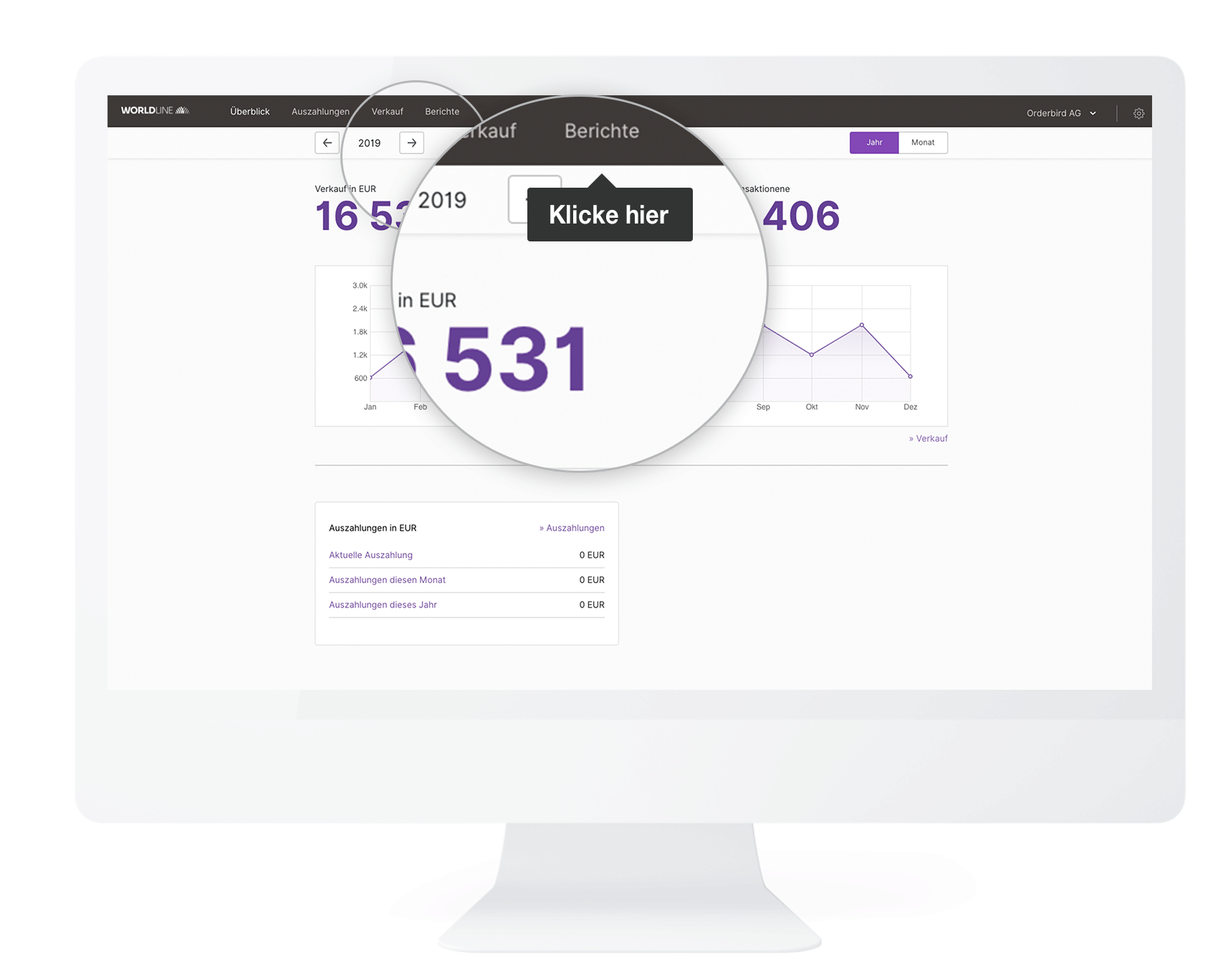
  2. In the top bar, click on “Reports”
  3. Now you click on the symbol with the green "X" in the respective month under which "Detailed" is written.
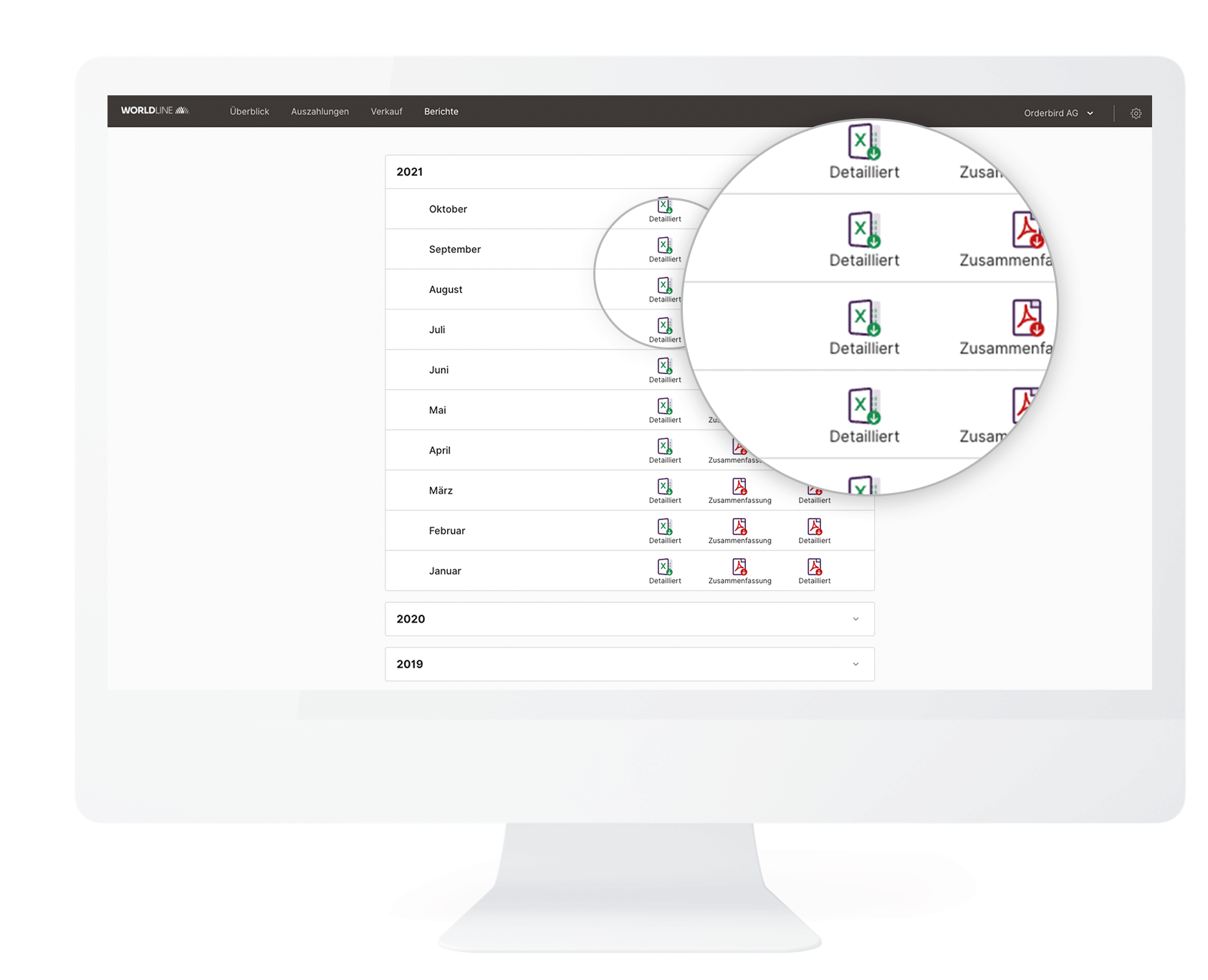
  4. The file will be saved on your computer.
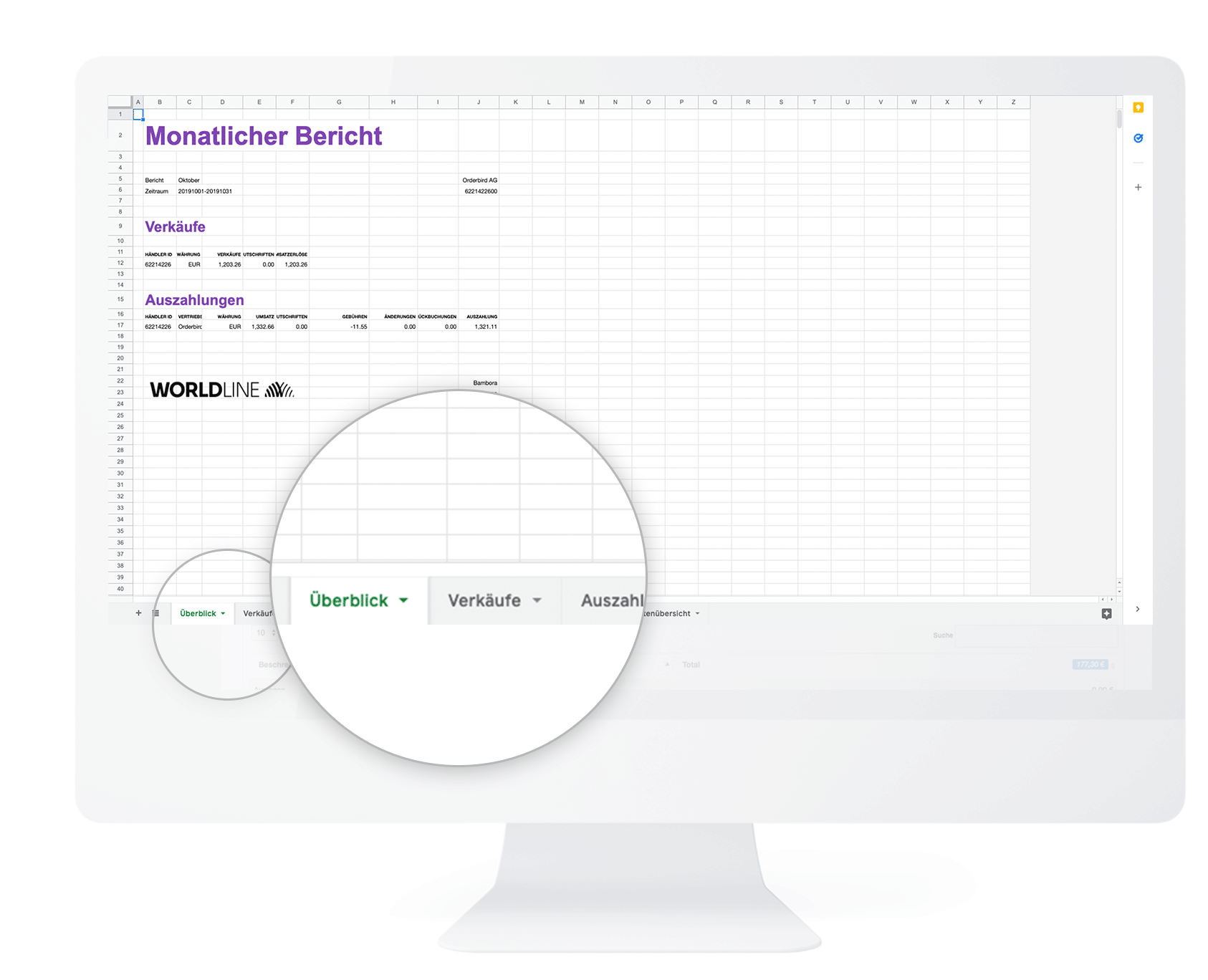
  5. Afterward, you can open the Excel file with Microsoft Excel. Alternatively, you can use the free program LibreOffice. You can download LibreOffice here for free and install it on your computer or laptop.

In this file, you will find via a corresponding tab:

  • an overview with payouts incl. calculated fees,
  • your individual sales,
  • the payments made to you,
  • the payment details,
  • possible chargebacks,
  • changes (an overview of service fees) and
  • an overview of the card types used.


Did you know?

The disagio is tax-free!


Attention!

orderbird does not offer legal or tax advice. Any information with legal or tax aspects is in no way to be considered legal or tax advice.

Therefore, please contact your tax advisor for a binding statement on how to use orderbird MINI correctly. orderbird excludes any liability for the topicality, correctness and completeness of the information that orderbird provides here with regard to tax procedures.

 
worldline payments transaction report

Was this article helpful?

Yes
No
Give feedback about this article

Ähnliche Artikel

  • Worldline at a glance
  • Card payment with Worldline - Conditions
  • Your Worldline account: Login and data management
  • Your revenue with Worldline

About orderbird

With over 17,000 customers — restaurants, cafés, bars, clubs, and beer gardens — orderbird is one of the leading Point of Sales systems for the hospitality industry in Europe. With the mobile POS system orderbird MINI, orderbird also offers a smart cash register solution for service providers, retailers, mobile hospitality, and the crafts.

orderbird was founded in 2011 and today employs more than 120 people.

Address

orderbird GmbH
Ritterstraße 12
D-10969 Berlin
Phone: 030 208 983 098

Opening hours

Monday: 09:00 - 18:00 Uhr
Tuesday: 09:00 - 18:00 Uhr
Wednesday: 09:00 - 18:00 Uhr
Thursday: 09:00 - 18:00 Uhr
Friday: 09:00 - 18:00 Uhr
Saturday: Geschlossen (außer Notfall-Support)
Sunday: Geschlossen (außer Notfall-Support)


© 2026 orderbird GmbH
  • Imprint
  • Privacy Policy
  • Legal Notice
Expand

Translation Unavailable

This article is currently available only in German. You are viewing the German version.